 Profile HelpIntuit
Install and configure the Client Explorer database as a Shared Database Server
by Intuit• Updated 9 months ago
The benefit of the Client Explorer Shared Database Server is that all the users on the network sharing the index will have the same file state.
This means that if one person EFILEs a return and it's file property of EFILE Status changes to EFILE Accepted, anyone else opening Client Explorer will see the same status.
Initial setup
There are two configurations that need to be performed: the Server Configuration and the Workstation Configuration.
The Server Configuration is the actual Shared Database Server that stores the index files themselves. The Workstation Configuration simply connects to the Shared Database Server already created.
Clearing the database
It is necessary to clear the database to ensure that there are no duplicates or incorrect locations listed.
1. Close all open ProFile applications on all workstations.
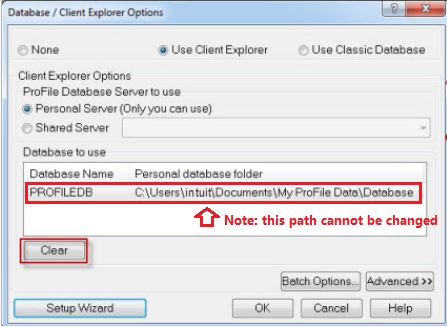
2. Select Database from the Options drop-down menu in the top toolbar. The Database/Client Explorer Options window displays.
3. Select the Clear button.
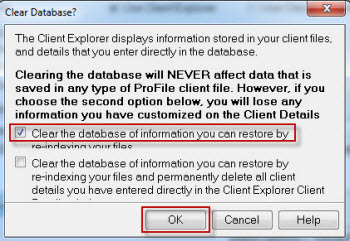
4. Select the Clear the database of information you can restore by re-indexing your files checkbox.
5. Select the OK button, then select the OK button again.
The database can now be configured.
Configuring the database for the Server and Workstation
Note: The configuration of the database is the same process for both the Server and Workstation configurations.
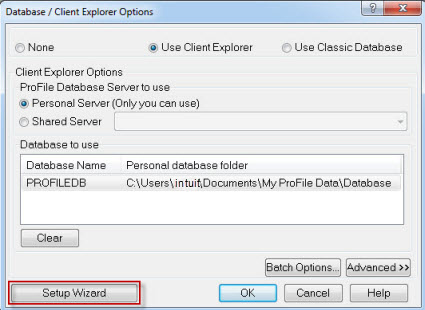
- Select Database from the Options drop-down menu in the top toolbar. The Database/Client Explorer Options window displays.
- Select the Setup Wizard button and follow the prompts.
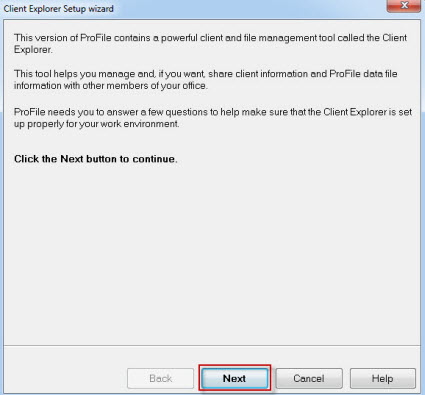
3. Select the Next button.
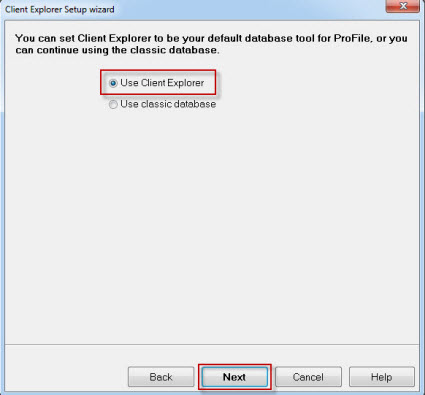
4. Select Use Client Explorer.
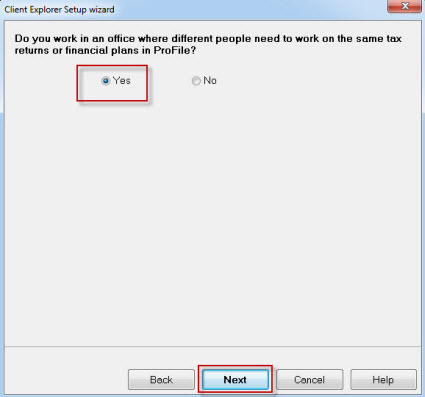
5. Select Yes.
To set up the Shared Database Server, review the Server Configuration section below.
To set up the Workstation Configuration, review the Workstation Configuration section below.
Server configuration
The Server Configuration is the actual Shared Database Server that stores the index files themselves. Typically, this is performed on an actual server machine, but any machine that all the other computers on the network can access would be sufficient.
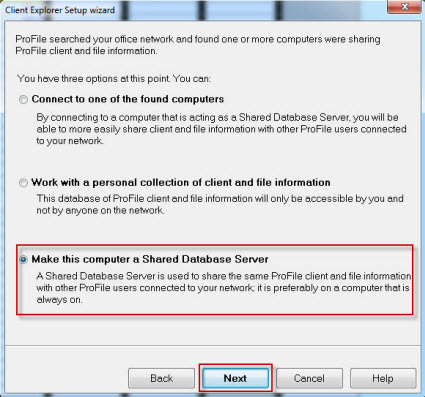
1. Select the Make this computer a Shared Database Server option.
2. Select the Next button.
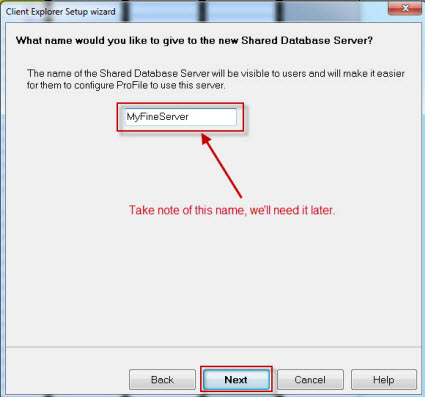
3. Change the default server name to the new name to be used.
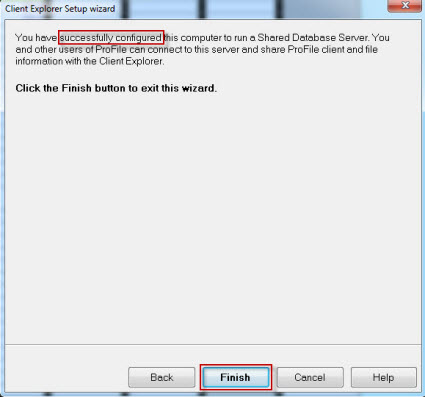
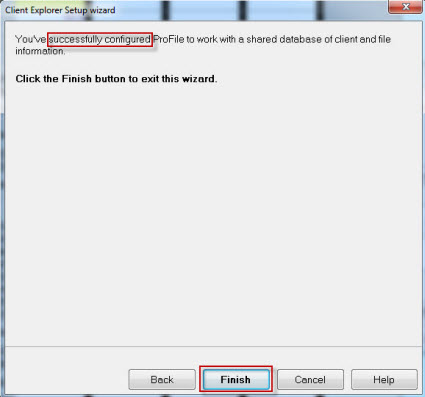
The successfully configured message displays if the configuration is correct.
4. Select the Finish button.
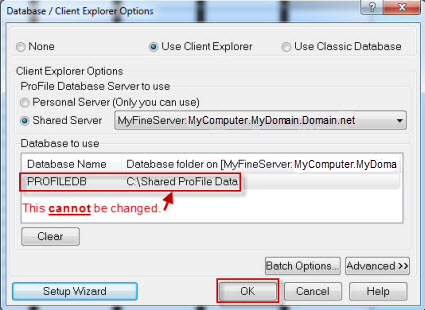
5. Select the OK button.
If there's an error message, the most probable cause is that the Firewall Exceptions needs to be configured for profiledbservice.exe (ProFile installation directory).
Workstation configuration
The Workstation Configuration simply connects to the Shared Database Server already created.
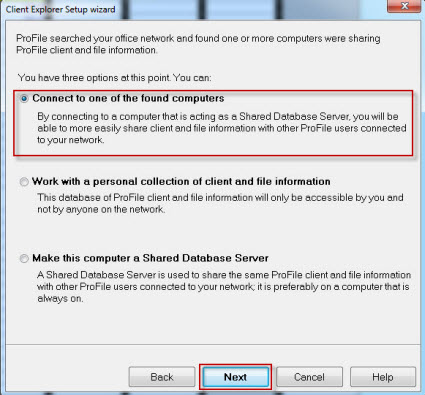
1. Select the Connect to one of the found computers option.
2. Select the Next button.
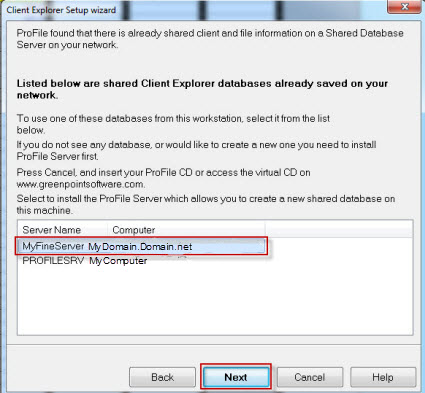
3. Select the Shared Database Server created earlier.
4. Select the Next button.
The successfully configured message displays if the configuration is correct.
5. Select the Finish button.
6. Select the OK button.
If there's an error message, the most probable cause is that the Firewall Exceptions need to be configured for profiledbservice.exe (ProFile installation directory).
Completing the setup
It is necessary to index the database in order to complete the set up. This can be performed on any machine sharing the Client Explorer index.
1. Open Client Explorer using the
2. Select the Index button.
3. Ensure the directory listed is the main folder that contains all of the ProFile tax files, and that the Include subfolders checkbox is selected.
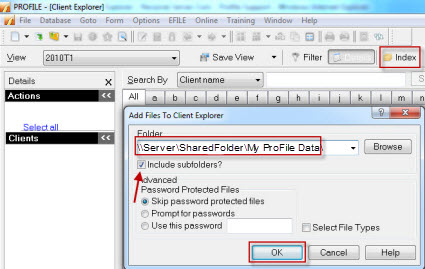
4. Select the OK button.
Note: If indexing on the server itself, ensure it is pointing to a directory accessible by other machines on the network.
For example, use ServerName/SharedFolder/My ProFile Data rather than the local path of C:/Users/MyAccount/My Documents/My ProFile Data.
Depending on how many files are being indexed, this may take some time. When finished, Client Explorer displays the files indexed in the Shared Database Server.
Sign in now for personalized help
Ask questions, get answers, and join our large community of Profile users.