Attach documents for EFILE of T2 returns with the Attach a Doc feature in ProFile
by Intuit• Updated 8 months ago
Access the attachment wizard
You can start attaching documents by right-clicking in a T2 return or by using the ProFile top toolbar.
- From the right-click menu, open the T2 return.
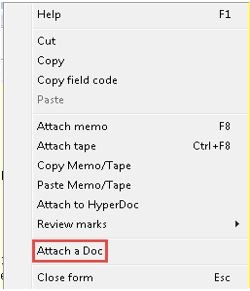
- Right-click on the return or field.
- Select Attach a Doc from the menu.
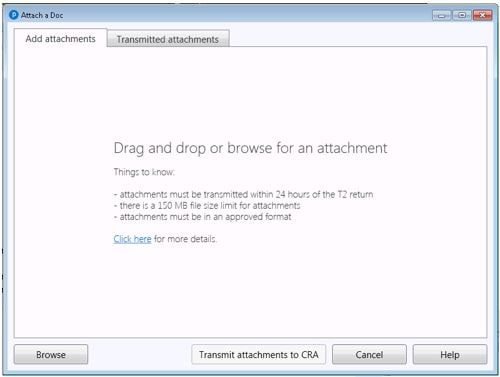
The attachment wizard displays.
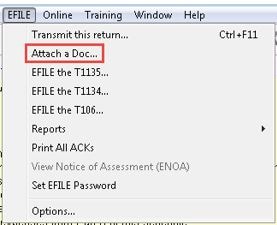
- Go to the EFILE menu in the ProFile toolbar and select Attach a Doc...
The attachment wizard will display.
Attach documents
The attachment wizard provides the ability to attach documents to a previously transmitted T2 return:
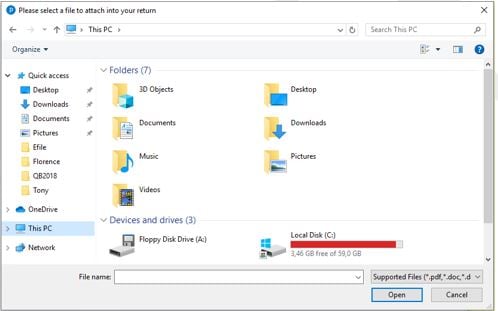
- Select Browse. The browse window will display.
- Navigate to the location of the file and select it.
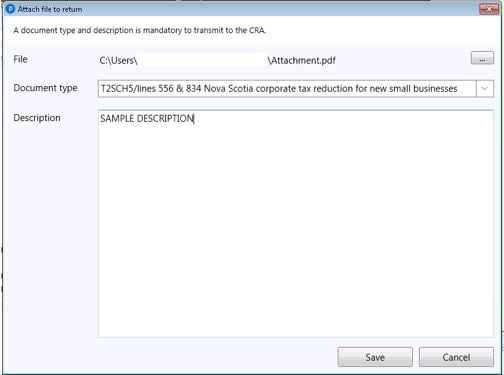
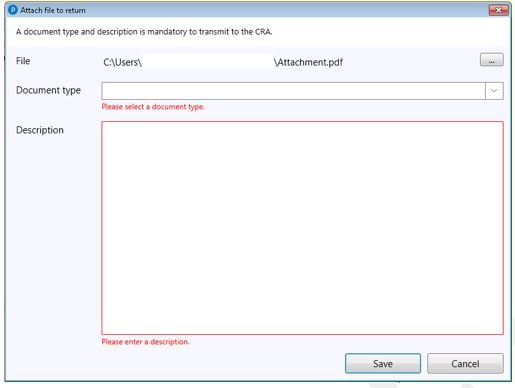
- Select OK. The Attach a file to return window will display with the file path and name of the document being attached.
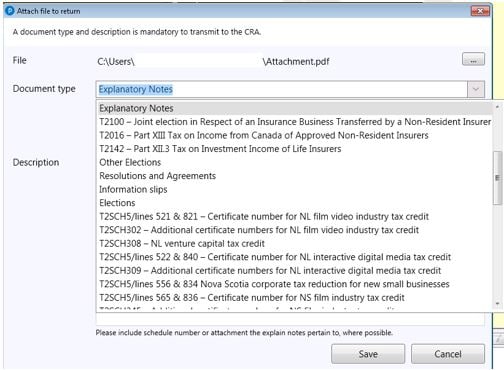
- Select the Document type. The list pre-populates with document types accepted by the CRA for transmission.
- Start typing to see options or scroll down the list and make the selection.
- Enter a brief description in the Description field. This is a required field to meet CRA requirements.
- Select Save.
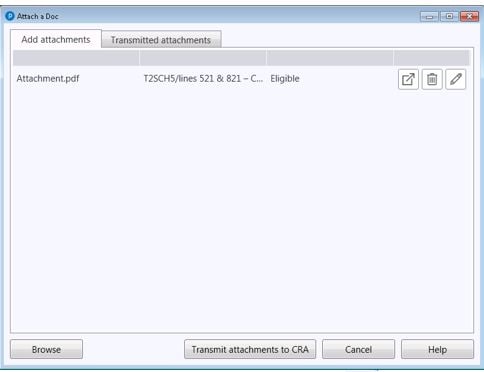
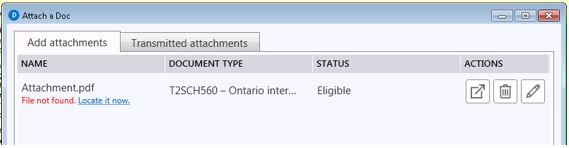
The attachment wizard accepts the document and lists the NAME, DOCUMENT TYPE, and STATUS values.
- Use the ACTIONS icons to preview, delete, or edit the attachment description, if needed.
An attachment that fails to meet the requirements for transmission displays in red text:
Errors must be addressed prior to re-saving the window. Errors can include, but are not limited to:
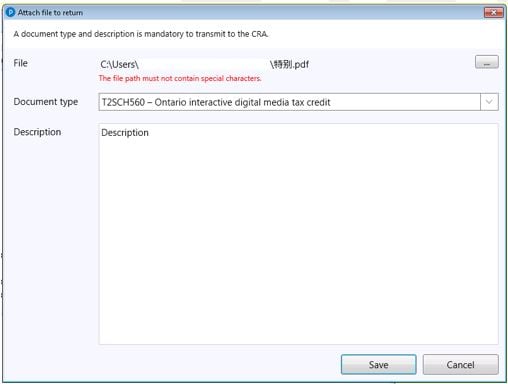
- Special characters in the filename
- Failure to enter a description of the attachment
- The file was moved or deleted since being attached
See the section Troubleshoot attachment issues below for error examples and resolutions.
Transmit documents
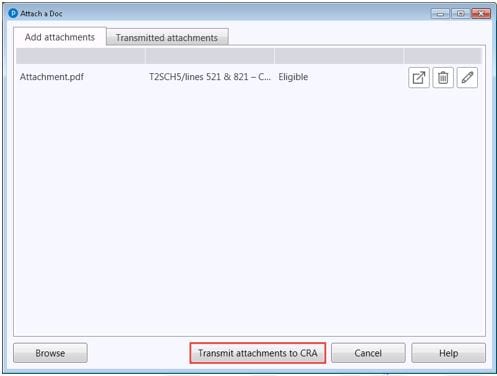
- Ensure that all relevant files are included in the Add attachments tab of the attachment wizard.
- Select Transmit attachments to CRA.
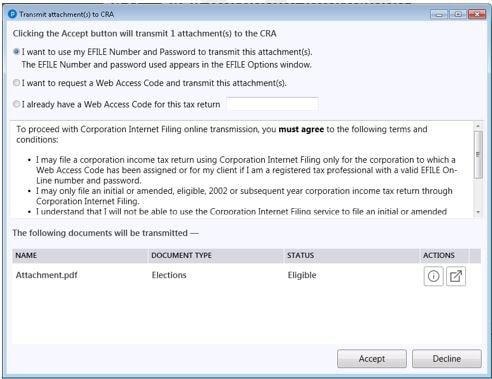
The Transmit attachment(s) to CRA window displays:
- Select EFILE number and password, or Web Access Code (WAC) as the method of transmission. If you require a WAC, but don't have one, select I want to request a Web Access code and transmit the attachment(s).
Note: To obtain a Web Access Code (WAC) you'll need your business's latest Notice of Assessment (NOA) or Reassessment (NOR). If you're filing for the first time, contact the CRA help desk for a WAC, as it's not available through ProFile.
- Select Decline to end the transmission process. The attachment remains in the Add attachment(s) pane until submitted or deleted.
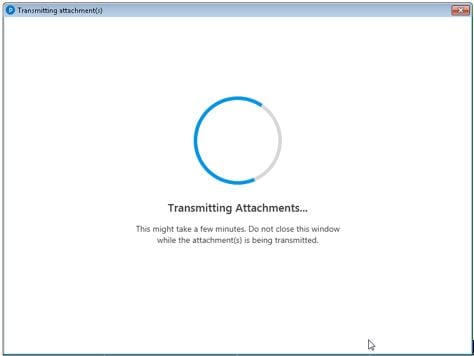
- Select Accept to transmit. The Transmitting attachment(s) window will display.
Note: Do not close the Transmitting attachment(s) window while transmission is underway. Larger files may take several minutes to complete transmission.
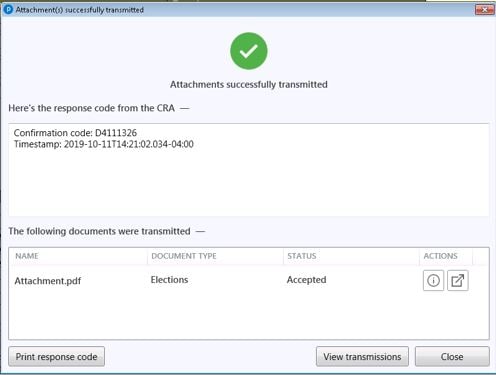
The Attachments(s) successfully transmitted window displays when the document successfully transmits:
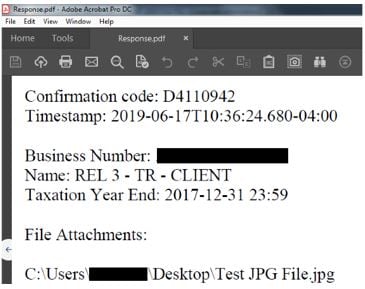
- Select Print response code to view and print a record of the transmission for your records.
Note: The response code includes a timestamp that features the date of transmission (for example, 2019-06-17), the transmission time to the millisecond (for example, 10:36:24:680) and the time zone (for example, -04:00).
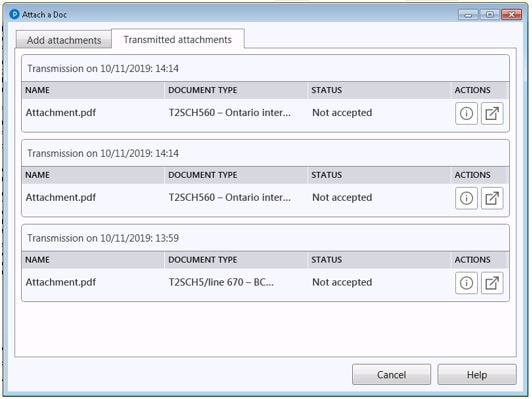
- Select View transmissions to review transmissions and their status related to the T2 return.
Failure to transmit attachments error
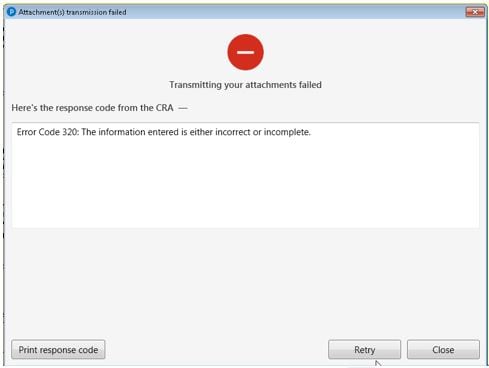
An unsuccessful transmission will return an error message.
A CRA error code is provided, as well as an explanation of the issue.
Fix the issue (for example if the file is too large), then reattach and send it again.
If the issue persists, contact the CRA’s Corporation Internet Filing Helpdesk.
Attach and transmit documents for T106, T1134, and T1135
Beginning in version 2021.2, ProFile users can now add documents for transmission after electronically filing their T106, T1134 and T1135 through the Foreign Reporting Requirements Management System (FRRMS). This will be active starting in the 2019-2022 module.
- Go to EFILE and select Attach a Doc...
- Select FRRMS Submit electronic documents, and then select Next.
- Select Browse and search for the file you want to attach.
- Select the return type. In the Slip dropdown box, choose the slip or summary you are attaching the document to. Choose the document type you are attaching.
- Select Save.
- Select Start electronic document submission to CRA.
- Check the box beside the document(s) you are transmitting, and select the return type.
- Select Next.
- Select Submit electronic documents.
Tip: Documents can also be transmitted after EFILE of the corresponding return. There is no required wait period. On the EFILE confirmation window, there is an option to Submit e-Documents to CRA.
Additional option for reviewing documents
The HyperDocs feature in ProFile allows users to review previously transmitted documents. To do this, follow these steps:
- Open the T2 return.
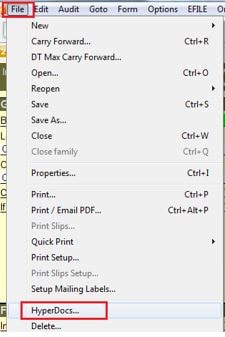
- Select the HyperDocs… option from the File dropdown menu in the top toolbar.
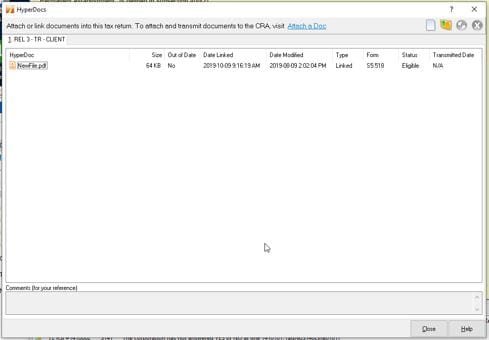
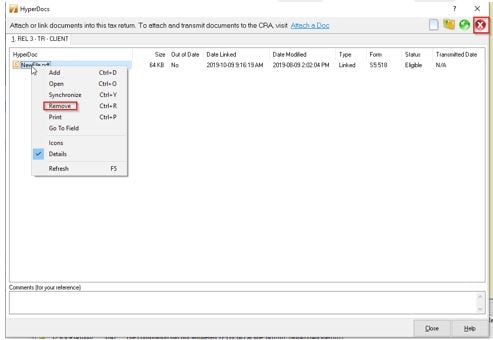
The HyperDocs window displays successfully transmitted attachments:
- Select an attachment you want to remove from HyperDocs, and then select X. Alternatively, right-click on an attachment and then select Remove.
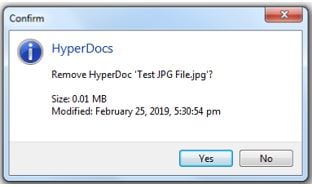
The Confirm window displays:
- Select Yes to remove the attachment from HyperDocs.
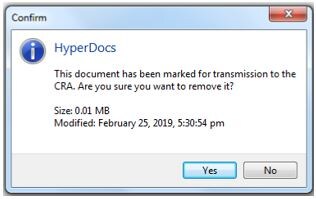
A Confirm window displays if the attachment has not been successfully transmitted:
- Select the Yes to remove the attachment from HyperDocs.
The attachment is removed from the HyperDocs list.
Troubleshoot attachment issues
Incorrect document type
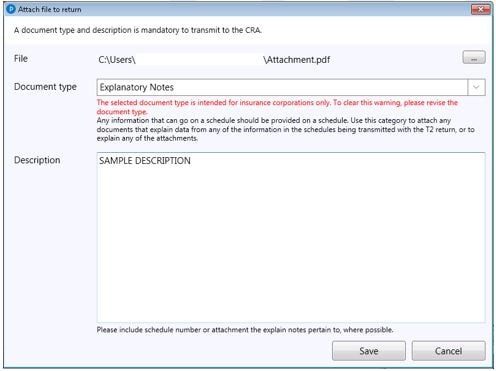
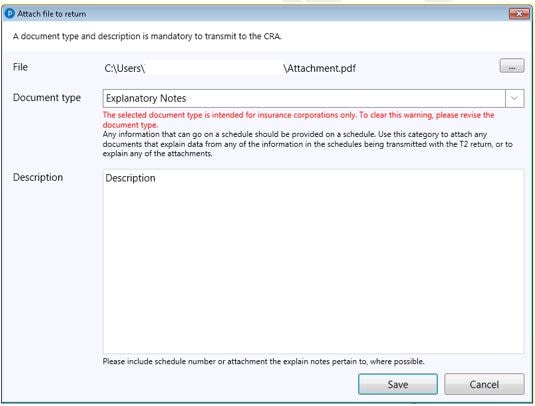
The following error indicates that the selected attachment type is not eligible for transmission:
The selected document type is intended for insurance corporations only. To clear this warning, please revise the document type.
The solution is to select a file with a compatible file extension.
User did not select a document type or provide a description
The following error indicates that a document type and/or a description was not provided:
Please select a document type
The solution is to ensure a document type and description are provided prior to saving this window.
The attachment contains special characters in the file name
The following error indicates that the file selected contains special characters in the file name that renders it ineligible for transmission:
The file path must not contain special characters.
The solution is to rename the file to exclude special characters.
A “File not found” error displays in the transmission window
The following error indicates that the file selected has moved or been deleted prior to transmission:
File not found.
The solution is to restore the file to the path originally designated, or select the file again from its new location.
Frequently Asked Questions about attachments
What modules allow electronic transmission of attachments in ProFile?
The ProFile feature HyperDocs exists in all modules for users to add attachments. Currently, only the T2 module allows transmission of attachments via the Attach a Doc feature.
When are attachments transmitted?
The CRA allows corporations to transmit supporting documentation via ProFile’s Attach a Doc feature within 24 hours of the EFILE of a T2’s initial or amended return.
What files types are supported?
The following file types can be used as attachments:
- .doc
- .docx
- .xls
- .xlsx
- .rtf
- .txt
- .jpg
- .jpeg
- .tiff
- .tif
- .xps
What is the maximum attachment size?
The maximum attachment size is 150 megabytes (MB). This is a CRA limitation.
Is there a limit to the number of attachments transmitted?
As long as attachments are sent within 24 hours of EFILE submission for the T2 return, you can send as many as you need.
Can I make attachments prior to the T2 return being transmitted?
Yes, but the T2 return needs to be sent before you upload the attachments.
To learn more, review our tutorial video.
More like this