 Profile HelpIntuit
Special Election and Return Filing (SERs)
by Intuit• Updated 5 months ago
You can electronically file Special Elections and Returns (SERs), and include supporting documents at the time of filing. SERs can be filed at any time.
Table of contents:

Note on supporting documentation
ProFile will support additional documents to be uploaded up to 24 hours after the return(s) was filed. After 24 hours, you can still upload supporting documents through the CRA’s My Account for individuals or My Business Account portals for up to 7 days.
To file SERs, preparers can use their existing EFILE number, an existing DAC (Digital Access Code). See our FAQ for additional information on DAC).
The Digital Access Code (DAC) now requires your business's latest Notice of Assessment (NOA) or Reassessment (NOR). If you're filing for the first time, contact the CRA help desk for a DAC, as it's not available through ProFile.
Returns and documents submitted through SERS can be reviewed any time after filing through ProFile, making it easy to track what was sent to CRA.
Note: Each return must be sent separately, as well as any other forms, like T2054#1, T2054#2. Documents that are attached to each form will be sent with the return.
Supported special election returns
T2 Module, business returns
For business returns, you can use your EFILE number or DAC. All returns support document upload.
- S89
- T2054
FX module business account
For business returns, you can use your EFILE number or DAC. Returns that support documents upload:
- T2054
- T2058
- T2057
- T2059
- UHT2900 (Note: this form does not support document attachments)
FX module individual account
The T2057 and T2059 can be submitted as individual returns if you select Yes for Is the transferor an individual? You will need an EFILE number from CRA.
The UHT2900 can be submitted as an individual return if you select Yes to Is the affected owner an individual with a SIN ITN or TTN account?
The CRA recommends you keep all supporting documents.
Filing SERs using an individual account
A valid EFILE credential is required to file individual SERs returns. You can only submit one return and form at a time. Individual return filing is only available in the FX module.
- From the EFILE menu, select EFILE SERs...
- Select File SERS Return for individual account (SIN, ITN or TTN).
- ProFile will let you know about any issues with this return. Go to the SERs tab in the auditor to find and resolve them.
Note: The option to select a business account will be greyed out for individual returns.
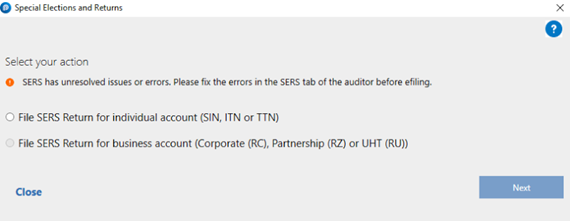
- Select Next once you’re ready to continue.
- Select the form you wish to EFILE.
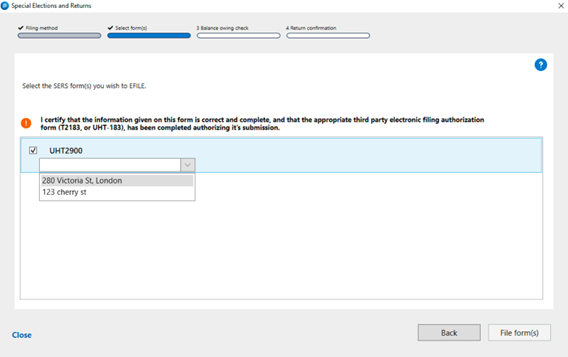
Submit forms one at a time. Repeat these steps until they’ve all been sent to the CRA.
- Select File form(s).
- We'll send the document to the CRA digitally. You can print the confirmation on the last page.
Selecting a business account SERs from the FX module
You can only submit one return and form at a time. This feature is available in the FX and T2 modules.
- From the EFILE menu select EFILE SERs…
- ProFile will let you know if there are any issues with the return. Go to the SERs tab in the auditor to find and resolve the messages.
- Select File SERS Return for business account (Corporate (RC), Partnership (RZ) or UHT (RU)) from the Select your action window and then select Next.
Note: The option to select an individual account is unavailable for business returns.
- Select Next once you’re ready to proceed.
Submitting returns for the first time
- Select File SERS Return and submit documents (if applicable).
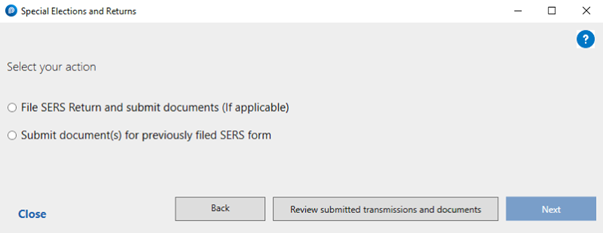
- If you are submitting the forms electronically without supporting documents, select File form(s).
- If you are uploading supporting documents, choose File form(s) and submit document(s).
Submitting supporting documents for filed returns
- If you've already filed and need to send supporting documents (within 24 hours of filing), choose Submit document(s) for previously filed SERS form from the Special Election and Returns window.
- Select the form you wish to attach a document to, attach the document(s), and submit them to CRA.
If you want to review what forms and/or documents you have already submitted, select Review submitted transmissions and documents in the Special Election and Returns window.
Selecting a business account SERs from the T2 module
You can only submit one return and form at a time. This feature is available in the T2 (2022 and forward) module.
- From the EFILE menu select EFILE SERs…
- Select File SERS Return and submit documents (if applicable) and then Next.
- Select your CRA transmission option, then select Next.
- Select which option you want to use to file the return:
- You can use your existing EFILE credentials.
- Apply for a Digital Access Code (DAC) through the CRA or ProFile. If you're filing for the first time, contact the CRA help desk to get a DAC since it's not available in ProFile.
- You can use your existing DAC.
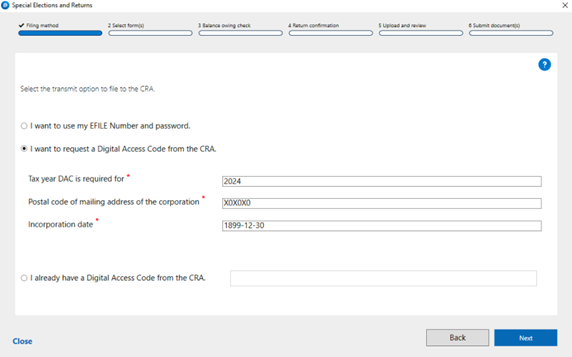
- Once you have made your selection, click Next.
- Select which return you would like to file and the form (where applicable).
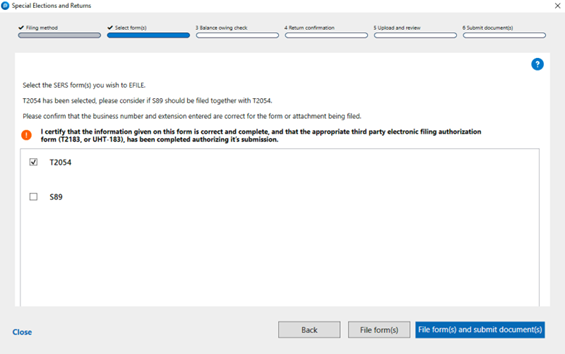
- Select File form(s) or File form(s) and submit document(s).
- If you have an amount owing, select your client’s intent of payment.
Note: Certain elections can't be approved.
- If you selected the option File form(s), ProFile will transmit the forms. If you selected the option to File and submit document(s), you can now attach a document to the return.
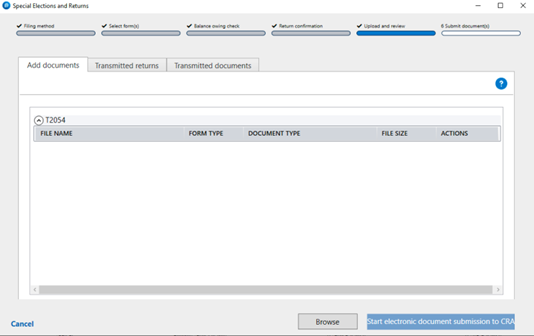
- Select the Add document tab.
- Select Browse.
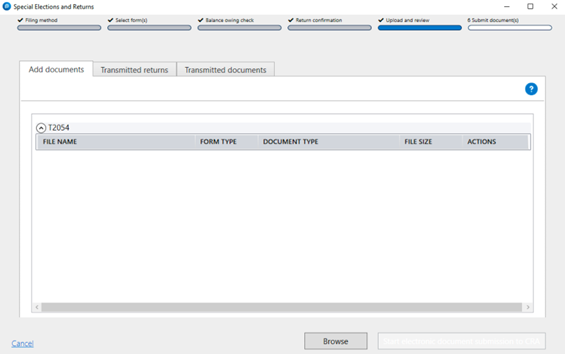
- Navigate to the location of the document(s) you wish to attach.
- Make sure you're submitting the right info: Return type, copy number, document type (director’s resolution, financial notes, supporting documents) and document name.
- Select Save.
- On the next screen, you have the following options:
- Open, review, edit the document
- Remove the file
(if you remove the file, it will automatically stop the transmission. By selecting Browse, you select a new document.)
- Return to the previous screen to make changes
.
- Open, review, edit the document

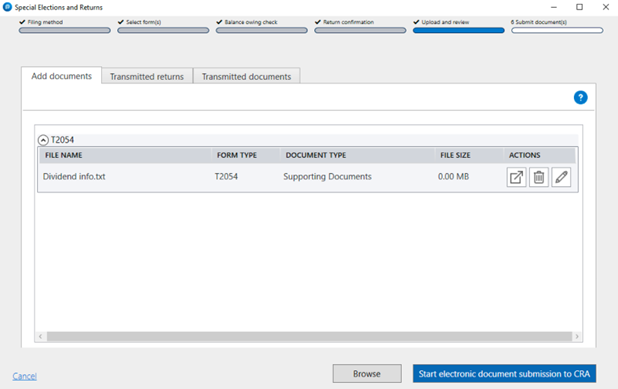
- Select Browse if you have additional documents to add. ProFile will take you back to the previous screen to select the Document type for each additional document added. Once all documents have been attached, select Start electronic document submission to CRA.
- Choose which documents you want to submit to CRA and select Next.
- ProFile will give you the opportunity to review your documents one last time before filing, including file size limit and how many documents you can still upload.
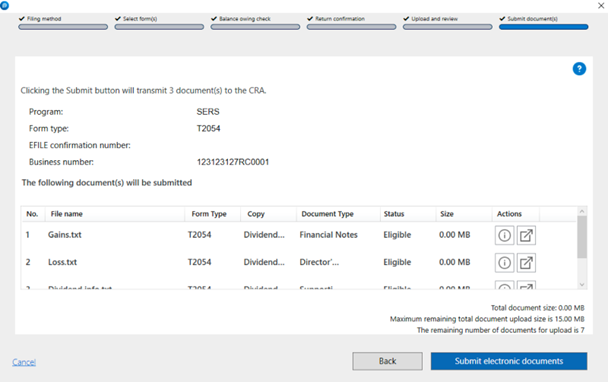
- Select Submit electronic documents.
- All forms and documents are submitted to CRA.
Submitting documents for previously filed (business account) SERs
Note: You can't submit supporting documents for individual filings. The CRA recommends you keep a copy.
- If you have already filed the return and want to submit the supporting documents (within 24 hours of filing the forms), go back to EFILE, then EFILE SERs...
- Choose Submit document(s) for previously filed SERS form. This action can be performed from either the T2 or FX module.
- If you want to review what forms or documents you have already submitted, select Review submitted transmissions and documents.
- You will have the option to add more documents for submission, or review what you have already submitted to CRA under Add documents.
- Once added, select Start electronic document submission to CRA.
Review SERs that have been transmitted to the CRA
Note: The review window will display only elements and status specific to the return you have open.
You can review which business and individual forms and documents you have submitted to CRA.
- Under the EFILE menu, select EFILE SERs...
- Select Review submitted transmissions and documents.
- You will have the option to add more documents for submission, or review what you have already submitted to CRA under Add documents.
- You can review which returns you have submitted, status and confirmation number (where applicable) under the Transmitted returns tab.

- You can review which documents were submitted along with the forms, as well as the status under the Transmitted documents tab.
Amended SERs return
- If you need to amend a SERs return, open the form and select, If this is an amended return, checkmark this box if filing a corporate amendment. If it's an individual amendment, select it to be amended in box 010.
- Go to the EFILE menu, select EFILE SERs… and proceed with the filing of your return.
- Select the amended return that you wish to re-submit to CRA.
- Where applicable, confirm that you have attached (or removed) supporting documents.
- Transmit the return.
Frequently asked questions
Can I file the information return and attachments at the same time?
Yes, you can file with the return or after the return is filed. You must file attachments within 24 hours of filing the return. Outside of this timeframe, the attachments must be submitted through the CRA website within 7 days.
What filing methods can be used to file SERs returns and attachments?
You can use an EFILE number, a DAC for business returns, or request a DAC to use in ProFile. If you're filing for the first time, contact the CRA help desk for a DAC, since it's not available through ProFile.
Can I use DAC to file my individual forms?
No. You need an EFILE number to file any individual forms/documents.
When should I use a DAC versus a Web Access Code (WAC)?
A WAC is requested from the CRA through ProFile for NetFiling T2 returns. DAC can be requested from the CRA using ProFile, for Business SERs designated forms (S89, T2054, T2058, T2057, T2059, UHT2900).
Note: You'll need your business's latest Notice of Assessment (NOA) or Reassessment (NOR). If you're filing for the first time, contact the CRA help desk for a WAC or DAC, as it's not available through ProFile.
How long does it take to get a DAC through ProFile from CRA?
If you are eligible, CRA will issue you a DAC right away.
Where are my auditor tabs?
The auditor window will resize according to your screen size and resolution. To view all auditor tabs, click on the arrows on the right side of the auditor window.
More like this