 Profile HelpIntuit
"Webservice Unavailable" error when EFILE, NetFile, or transmitting return in ProFile
by Intuit• Updated 3 months ago
When you try to send a return, the EFILE window says the web service is not available, even though other returns have been accepted before.
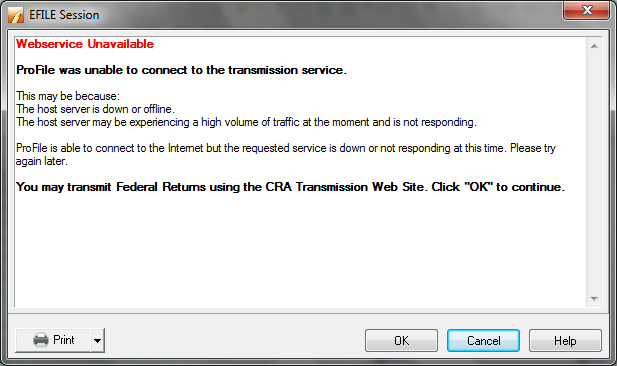
This error often happens after Windows updates or updates to your security software. Sometimes, it’s also caused by firewall permissions.
Resolution
There are several settings to review and confirm are set correctly to resolve this issue, review the table below:
Table of contents:
| ‣ Review the system date |
| ‣ Set firewall and antivirus exceptions for ProFile |
| ‣ Restore settings changed with Windows Update |
| ‣ Set SSL/TSL security |
| ‣ Add permissions in Windows Firewall |
Review the system date
If the system date on the computer falls behind the CRA EFILE start date, the Webservice Unavailable message may display.
Review the system date on your computer and change it if required:
- Windows 10:
- Select the date and time item in the bottom right corner of your Windows screen.
- Select Date and time settings. The Settings window displays.
- Select Date & time from the left menu.
- If Set time automatically is turned On, turn it Off.
- Select Change under Change Date and Time.
- Set the date and select Change.
- Windows 11:
- Right-Click on the date and time in the bottom right corner of your Windows screen.
- Select Adjust date and time
- If Set time automatically is turned On, turn it Off.
- Select Change on the Set the date and time manually line.
- Set the date and select Change.
Note: These settings may be fixed by your employer and not eligible to be changed. Contact your system or network administrator if this is the case.

Set firewall and antivirus exceptions for ProFile
To use ProFile’s online features, make sure your antivirus software has an exception for ProFile. This keeps your computer secure while letting ProFile work as it should.
Check your antivirus software’s list of exceptions. Since steps can differ depending on the software you use, you may need to contact your provider or look up instructions online to review or add exceptions.
Note: If Windows Firewall is turned off, an antivirus program may be managing your firewall settings, or a hardware firewall could be in place. Only your system or network admin can update hardware firewall settings.
Restore settings changed with Windows Update
Some settings can change with a Windows update. One such case is with the internet options.
- Close ProFile.
- Open the Windows Control Panel.
- Select Network & Internet.
- Select Internet Options. The Internet Properties window displays.
- Select the Connections tab and then select LAN Settings. The Local Area Network (LAN) Settings window displays.
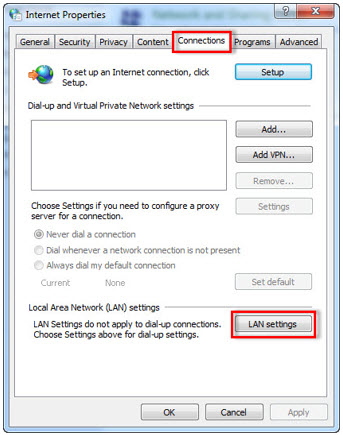
- Uncheck the Automatically detect settings and the Use a proxy server for your LAN checkboxes.
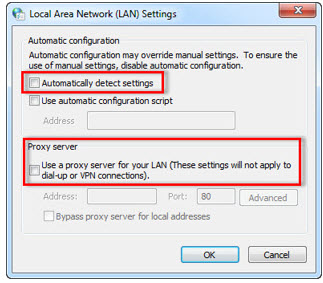
- Select OK.
Set SSL/TSL security
- Close ProFile.
- Open the Windows Control Panel.
- Select Network & Internet.
- Select Internet Options. The Internet Properties window will display.
- Select the Advanced tab.
- Review the SSL connections under the Settings section.
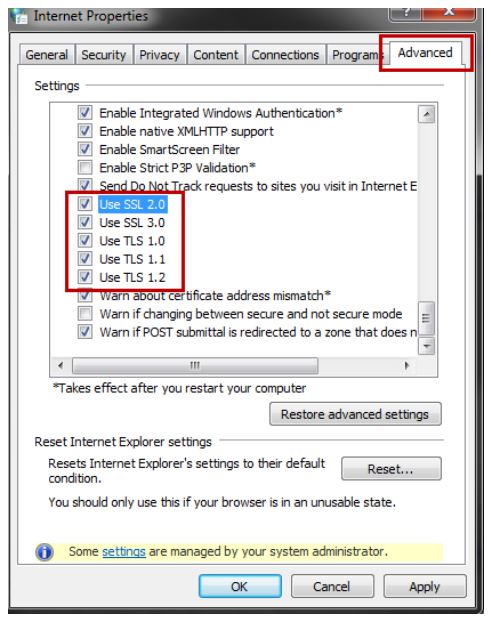
- Select all Use SSL and Use TLS options.
- Select OK.
- Select the Privacy tab.
- Select Advanced.
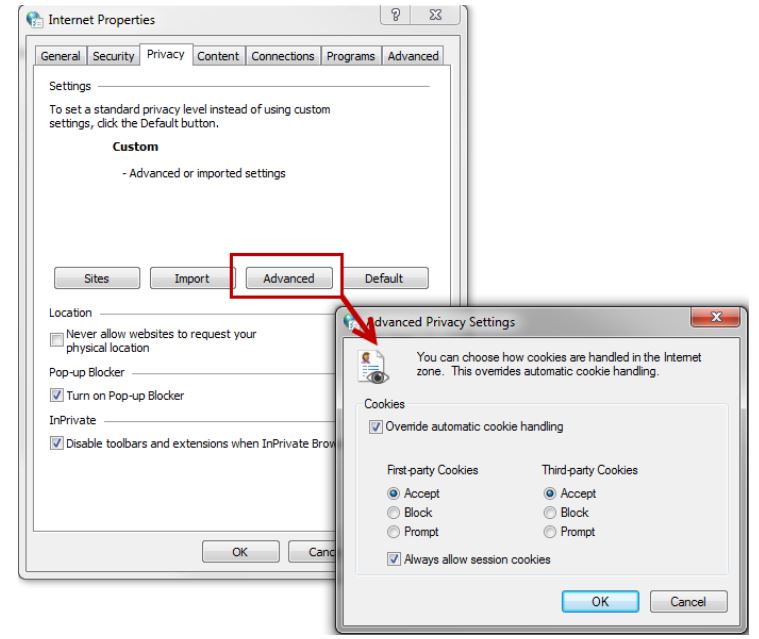
- Select Override automatic cookie handling.
- Set First-party Cookies to Accept.
- Set Third-party Cookies to Accept.
- Select OK.
Add permissions in Windows Firewall
Personal firewalls such as Zone Alarm, Norton, or McAfee, can also prevent access. It may be necessary to add several ProFile-related executable files to your list of firewall exceptions, in order to be able to maintain access.
Review Creating an exception in Windows Firewall for ProFile for instructions.
More like this
- ProFile hangs when connecting to the CRAby Intuit
- Webservice Unavailable message when trying to NetFile an AT1 or CO-17by Intuit
- Webservice Unavailable error when trying to EFILE with Kaspersky antivirusby Intuit
- Set up internet options if receiving an error message when transmitting a return to the CRAby Intuit