 Profile HelpIntuit
"RegAsmIntuit has stopped working" error in ProFile
by Intuit• Updated 1 week ago
An error occurs that reads:
RegAsmIntuit has stopped working.
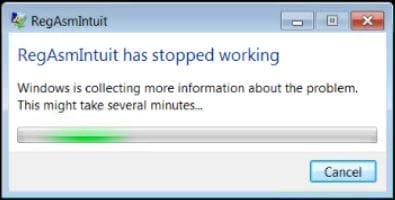
Try the following three options:
Table of contents:
Check for and apply updates
- Open the Windows Control Panel.
- Enter the search term windows update in the top-right corner search bar and press Enter. The search results display.
- Select Windows Update search result.
- Confirm there are no updates pending. The shield icon should be green with a white checkmark.
Note: Any optional status updates don't require activation.
- If updates are pending, activate the updates as listed.

Reinstall Microsoft redistributables
- Select the Windows icon on your desktop.
- Select Control Panel. The Windows Control Panel displays.
- Select the Uninstall a program option from the Programs section. A list of programs installed on the computer displays.
- Scroll down the list and identify any instances of Microsoft Visual C++ 2012 Redistributable and Microsoft Visual C++ 2013 Redistributable.
- Right-click on the first instance of Microsoft Visual C++ 2012 Redistributable and Microsoft Visual C++ 2013 Redistributable.
- Select Change from the menu.
- Select Repair from the Change window.
- Repeat the repair process for each instance of Microsoft Visual C++ 2012 Redistributable and Microsoft Visual C++ 2013 Redistributable.
- Reboot the computer when all instances have been repaired.
Note: If ProFile asks for another Microsoft Visual C++ tool, install and restart the computer before starting ProFile.
Run ProFile again. If the issue persists, move to the next step.
Reinstall ProFile
- Navigate to the ProFile download page.
- Download the file gpsetup.exe.
- Reboot the computer again and double-click the downloaded gpsetup.exe file to run ProFile.
More like this