 Profile HelpIntuit
About Linking in Corporate Linking
by Intuit• Updated 5 months ago
T2 filers can link data from a related corporation into another corporation's RAC Details form using ProFile's Corporate Linking function. If the data of a related corporation changes, you'll see the updates highlighted. You can sync the data with a few clicks.
Table of contents:
| ‣ Link a Related or Associated Corporation to a T2 Return |
| ‣ Review Related/Associated Corporation status |
| ‣ Communications within Corporate Linking |
| ‣ Frequently asked questions |

Link a Related or Associated Corporation to a T2 Return
- Open the T2 return.
- To link a related or associated corporation, select the Link icon.

- Navigate to the folder containing the return to be linked.
- Select the T2 return file of the related/associated corporation to be linked. The details of the related/associated corporation display.
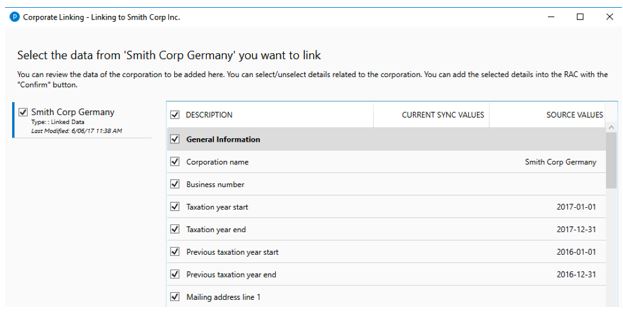
- Select or unselect the related/associated corporation's data.
- Select Confirm.
All selected related/associated data is imported and linked.
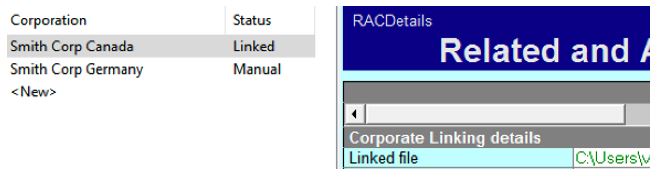
Note: The RAC Details of the newly-linked corporation displays and the designation Linked is assigned to it.
Review Related/Associated Corporation status
The status of linked or previously linked related corporations is shown in the left-side menu of the linking window.
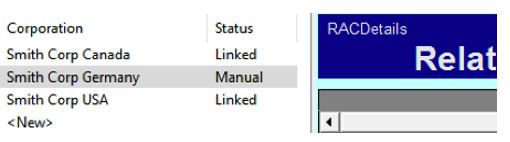
The following designations can apply to related/associated corporations:
- Linked: The related/associated corporation is linked.
- Manual: The related/associated corporation isn't linked, but the RAC Details information exists and may be linked.
- Broken: The related/associated corporation was previously linked, but has since been renamed or moved from its former location (for example the original file folder or directory). To relink the related/associated corporation, locate the file and select the Confirm or revert to the original file name.
Communications within Corporate Linking
The following messages may display when using the Corporate Linking function:
| Problem Statement | Cause |
| You have selected the currently open file. Please choose another file to link. | It isn't possible to add a T2 return to itself as a related/association corporation. |
| The selected file has already been linked to the current return. Please use review to unlink the file. | It isn't possible to link to the same related/associated corporation more than once. |
| You are linking a Corporation to the current return. Please use the Review Linked Corporations function to update any existing RACDetails entry. | User is linking to a related/association corporation for the first time. |
| The selected file was prepared with a version of ProFile that is not supported by corporate linking. | User is linking to a file whose tax year is not supported by Corporate Linking. |
Frequently asked questions
Who can use Corporate Linking?
Any ProFile customer who has the T2 module is eligible to use Corporate Linking.
For which tax years is Corporate Linking applicable?
Corporate linking is available for T2 returns in the 2015-2018 module or later.
Will Corporate Linking work for OnePay and Trial licenses?
Yes.
More like this