 Profile HelpIntuit
"Printer not activated" error or a print window hangs
by Intuit• Updated 5 months ago
ProFile users may see a "printer not activated" error and a reference number when creating a PDF.
Resolve the error
- Close ProFile.
- Open the Control Panel and navigate to Windows 10 View Devices and Printers. for Windows 11 Settings and navigate to Bluetooth & Devices, then select Printers and Scanners.
- Select the ProFile PDF Export printer.
- Select Remove device. The printer will be removed from the list.
- Go back to Printers & Scanners.
- Select Printer server properties in Related Settings.
- Select the Drivers tab, and then select the Amyuni Document Converter 550 option from the list of drivers.
- Select Remove....
The Remove driver and driver package window will appear
- Select Remove driver and driver package.
- Select OK.
- Select Delete.
The driver is deleted. Continue to the next step.
Note: If the process to remove the driver fails, reboot the computer and repeat the removal process.
- Navigate to the ProFile installation folder under Program Files (x86) > ProFile.
- Open the ProFile PDF Export folder.
- Right-click on the Install.exe file and select Run as administrator. The ProFile installation process begins.
- Select OK when installation is complete.
Check the port
- Exit ProFile.
- Select Start at bottom-left of the computer screen.
- Select Devices and Printers from the options list.
- Identify ProFile PDF Export printer in the list of printers.
- Right-click on ProFile PDF Export printer.
- Select Printer properties.
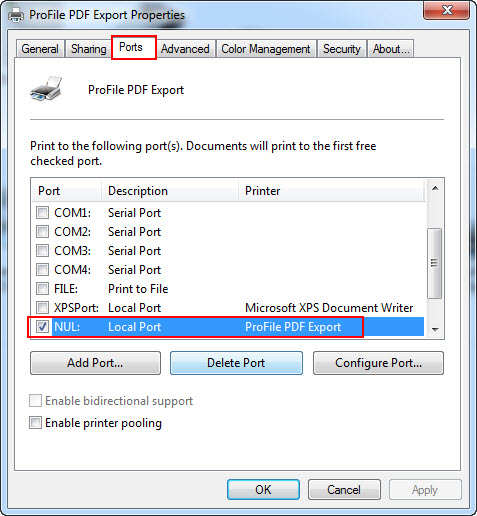
- Select the Ports tab.
- Ensure that the port selected is the NUL port and that no other printer is sharing that port.
- Delete any other printers sharing this port, or move them to a different port.
- Re-open ProFile.