 Profile HelpIntuit
File a T3 return and T3 slips in ProFIle
by Intuit• Updated 7 months ago
About filing a T3 return
Before 2017, you had to file T3s on paper, but you could send slips and summaries by XML. For 2017 and later, you can file T3s with XML. If you're using version 2021.3 or later, you can file T3s electronically with your EFILE credentials.
Note: This article is for filing slips and returns from 2021 and later. If you are looking to file a return from before 2021, see this article.
Available resources
The CRA's Where to file a T3 Return guide details where a T3 return can be filed.
The CRA's T3 Trust Guide provides information on how to complete the T3 Trust Income Tax and Information Return, the T3 slip, Statement of Trust Income Allocations and Designations, and the T3 Summary, Summary of Trust Income Allocations and Designations.
Paper file a T3 return in Profile
ProFile automatically enters info from the T3 schedules, slips, and forms to the T3 Trust Return Jacket. The last page of the jacket must be signed by a trustee, executor, or administrator.
Other forms you may need to file if they are used include:
- T3A: Request for loss carryback by a trust
- T1013: Consent form
- T1135: Foreign income verification statement
- T1141: Information return in respect of transfers or loans to a non-resident trust
- T2223: Election, under subsection 159(6.1) of the Income Tax Act, by a trust to defer payment of income tax
- TX19: Asking for a clearance certificate
- Election: Election to tax income in the trust
Use the T3Efile worksheet
T3Efile is a worksheet used to track exclusions stemming from the T3 return.
T3Efile automatically calculates eligibility and populates (using Yes or No values) based on the return information.
Here are the requirements you still need to meet before filing your T3 return.
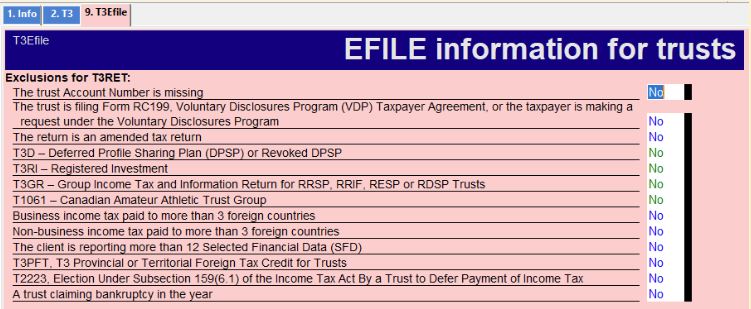
Any criteria for filing not being met prevents the "Internet file this return?" question in the return's Filing section from activating.
Preparers should review the T3Efile worksheet prior to EFILING and address any unmet criteria prior to filing. If Yes is selected for any of the T3Efile boxes, you may have to paper-file the return.
File T3 slips via XML filing
Note: print or save a PDF copy of the CRA confirmation after you EFILE. ProFile doesn't keep a record of which slips are transmitted.
Only current year slip filing is supported at this time. You might opt to use CRA's Web Forms application for filing older years.
- Prepare the T3 slip in ProFile.
- Open the Beneficiary details form and select the Type of slip being transmitted:
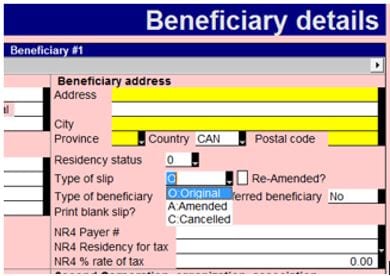
- Select the Transmit option under the EFILE dropdown menu in the top toolbar.
- Select the appropriate option under the Data type dropdown menu and select OK.
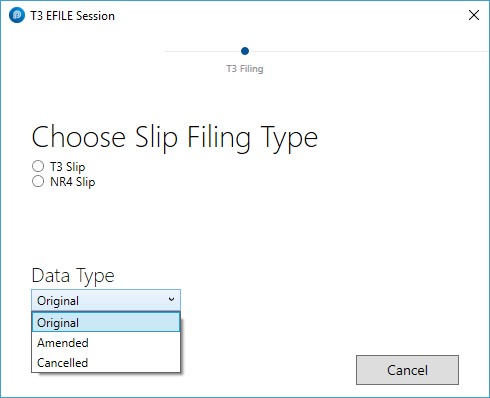
ProFile builds the XML file and automatically launches the CRA transmission window.
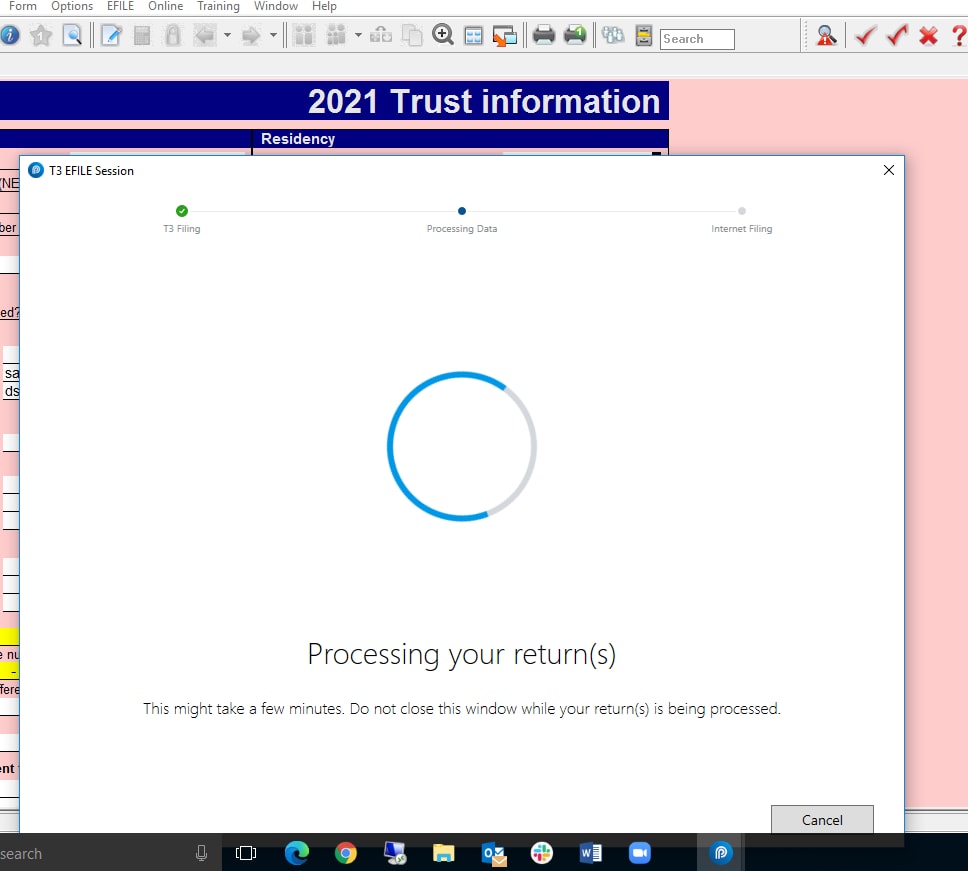
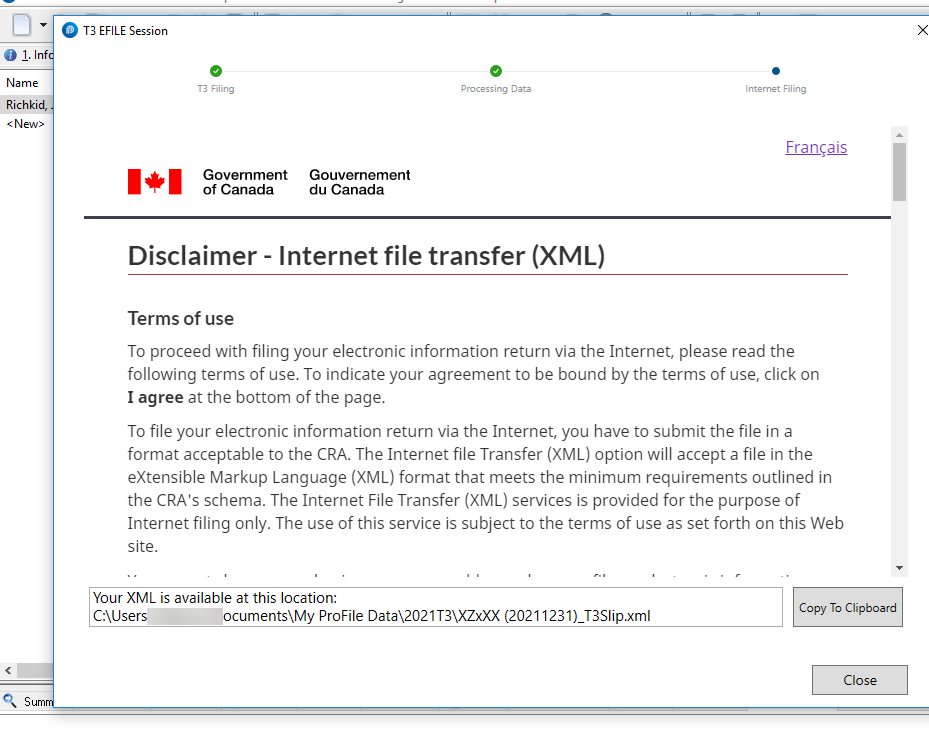
- Locate the XML in the designated folder or select Copy to Clipboard to copy the XML location to the clipboard.
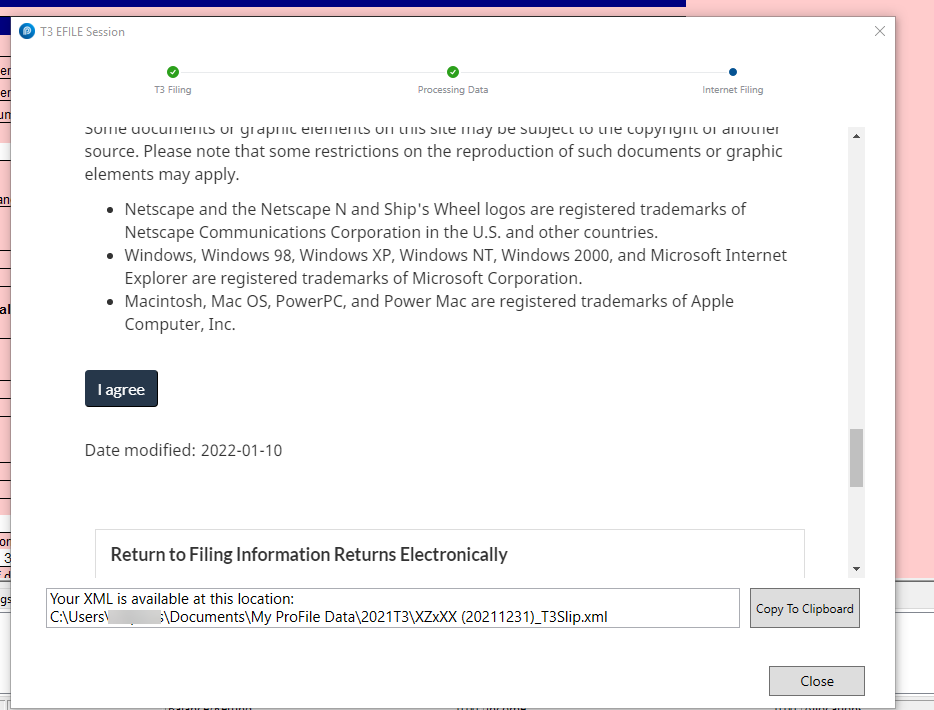
- Review the CRA disclaimer, and then select the I agree to transmit the XML.
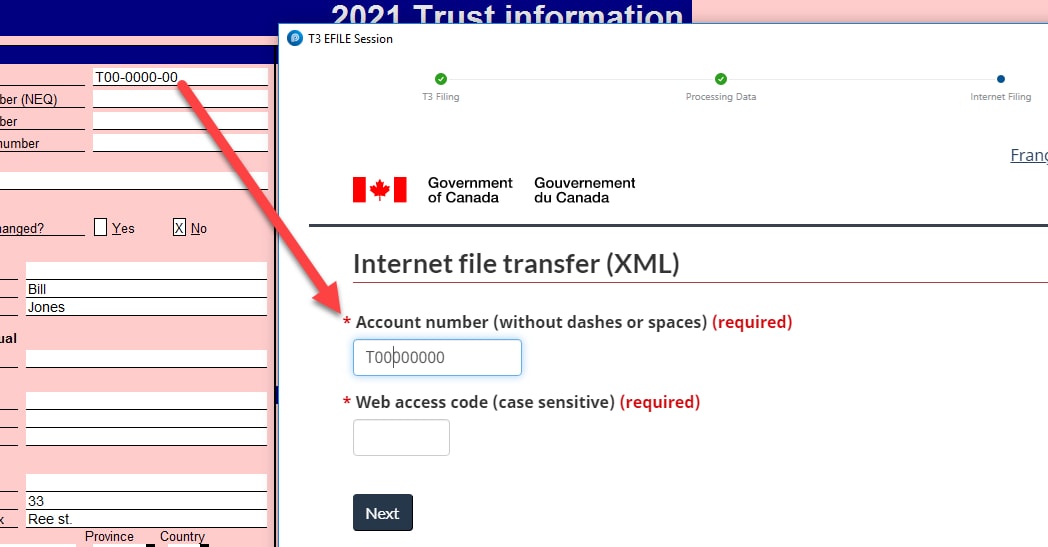
- Enter the Account number, Web access code and then select Next. The XML transmits to the CRA.
Note: Due to changes in CRA requirements, the account number must be manually entered. It can be copied from the Trust account number line on the Info page.
- Select the print icon on the browser window to print the confirmation number.
- Select Close.
EFILE a T3 return with CRA EFILE credentials
Beginning with the 2021.3.0 release, you can electronically file returns with a year-end of 2021 or later using CRA EFILE credentials. Just be sure the returns don't have any exclusions on the T3Efile worksheet.
A newer section on the Info page under Filing will default to Yes if a T3 is eligible for EFILE and No if not:
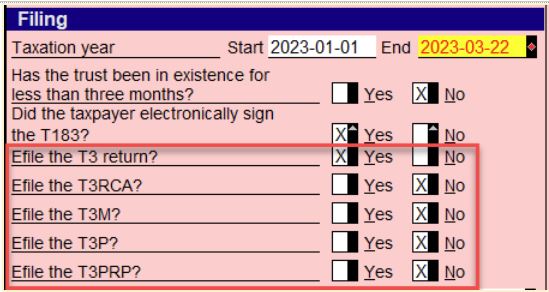
Slips and summaries must still be transmitted via XML filing.
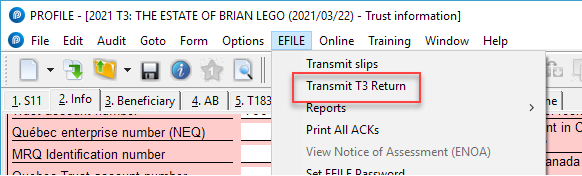
To EFILE the return, select EFILE in the top toolbar menu and then Transmit T3 return:
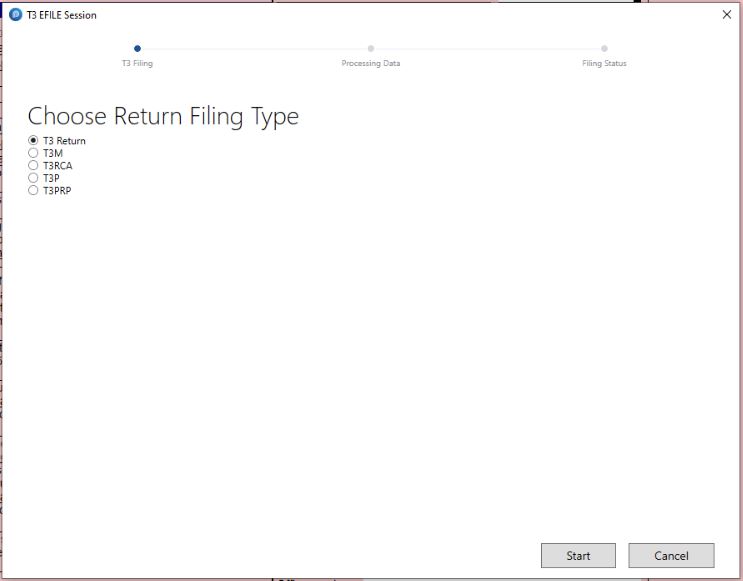
The interface displays as illustrated below. Select the type of T3 you are filing and then select Next.
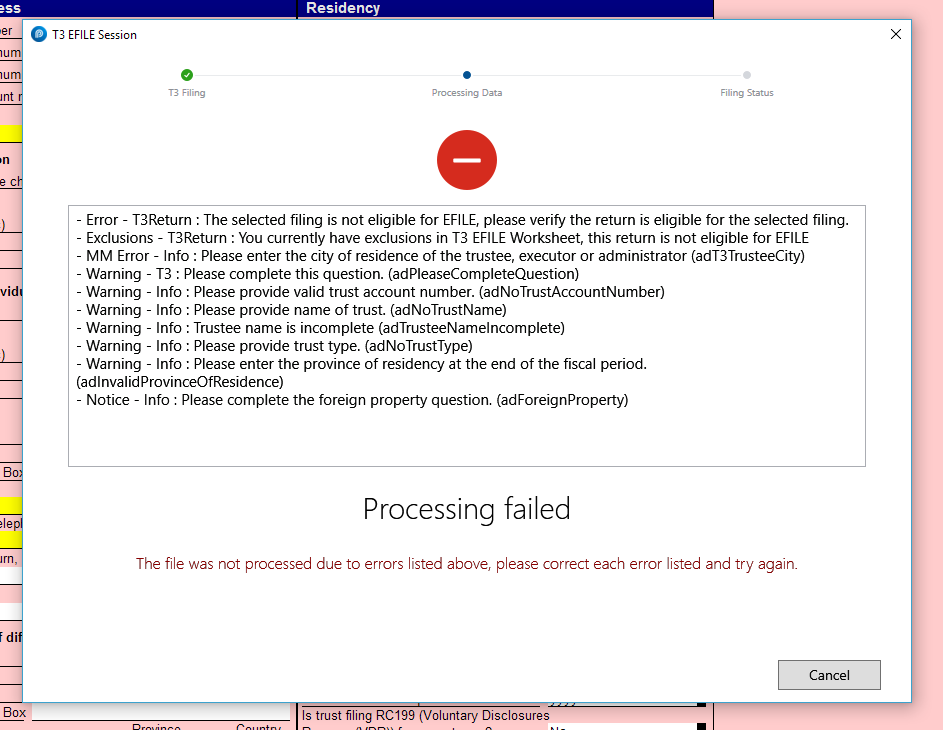
If your T3 file has EFILE errors you'll see a rejection box outlining what needs to be corrected:
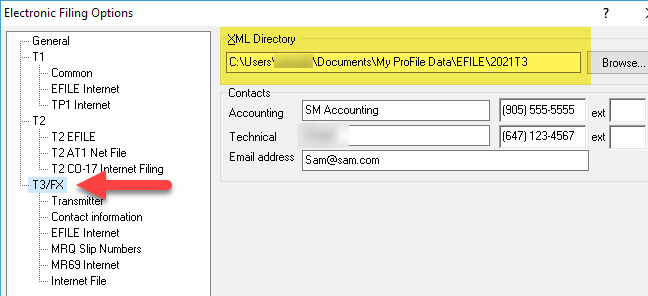
Your returns are submitted to the CRA in JSON format. The JSON, along with its acceptance or rejection message, will be stored in the folder you selected in the T3 EFILE -> Options directory.
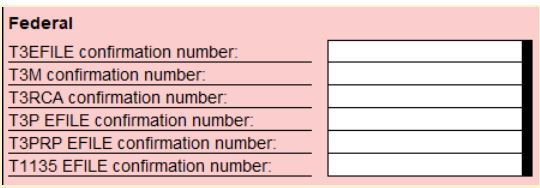
The confirmation number will appear on the Info page if successfully transmitted.
Early file next year's T3
The T3 module for the next year in ProFile will be available the following year. For instance, if the 2018 T3 module is the latest, and you need to prepare a 2019 return, the 2019 module will be ready in January 2019. In this case, use the previous year's T3 module to prepare the return.
New tax rate implementation
New tax rates are implemented in the previous year’s T3 module to handle preparation of next year’s T3 returns. Entering the appropriate year-end on the Info page initiates the applicable tax rates for that year. T3 returns filed using the previous year’s tax forms are acceptable to the CRA, and they will reassess the return if required.
Prepare next year’s T3 return using the previous year’s T3 module
- Save a duplicate copy of the previous year’s T3 return to be used as the next year’s T3 return.
- Open the previous year-end T3 return in ProFile.
- Enter the appropriate year-end for the trust return T3 to be prepared. This initiates the applicable tax rates for next year.
- Delete the information pertaining to the previous year-end, keeping what is required for the next year-end.
- Enter the T3 data required for filing the next year’s trust return, allocate income to beneficiaries, and create the T3 slips.
- Print the T3 trust return using File -> Print and print T3 slips using File -> Print Slips.
- Save the T3 trust return with a different file name to identify the tax rates for that year.