 Profile HelpIntuit
Carry forward TaxCycle returns in ProFile
by Intuit• Updated 4 months ago
The TaxCycle carry forward has three steps:
- Copy TaxCycle client data to a new folder.
- Submit client data for carry forward conversion.
- Open converted files in ProFile.
Copying TaxCycle client data
- Create a new folder under your computer’s C: drive called
Note: This folder may already exist on your C: drive if you have already updated ProFile to version 2019.2.0 or later.
- Navigate to the folder containing the TaxCycle client files to carry forward. You can find this location under Options and then Files and Folders in your TaxCycle software.
- Remove any locks or password protection from the files to carry forward.
- Copy and paste the files to carry forward to the new C: conversiondata folder you created.
Submit client data for carry forward
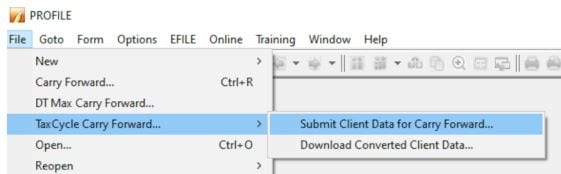
- Select the File menu in ProFile.
- Select the Submit Client Data for Carry Forward… option under the TaxCycle Carry Forward… menu. The Sign In window will display.
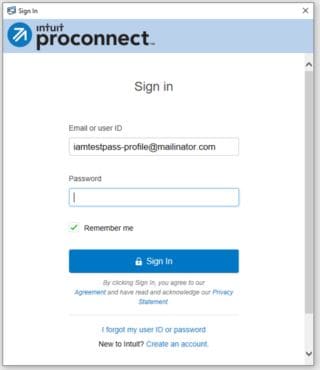
- Sign in to your ProFile account.
If you do not yet have a ProFile account, select the Create an account link at the bottom of the Sign In window.
Note: you may be prompted to sign in to your ProFile account a second time during the conversion process: This is normal behaviour.
A secure connection is established:

The Intuit Competitor Carryforward Wizard displays:
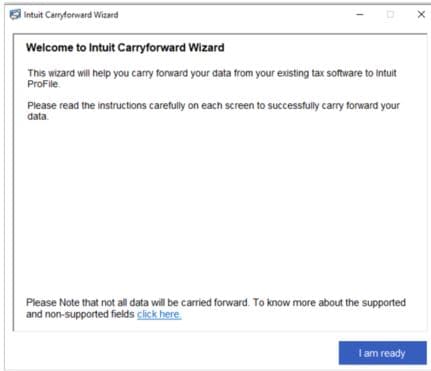
- Select I am ready to proceed. The module selection window displays:
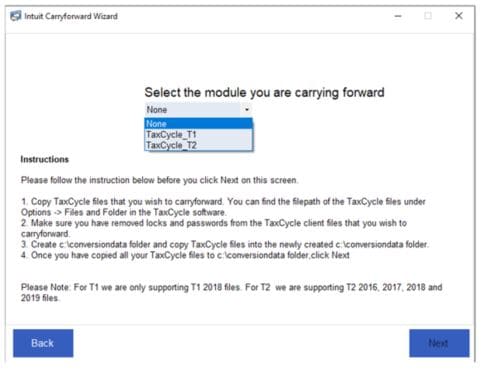
- Select the module you want from the dropdown menu. This module is for the files you want to change for the carry forward process. For example, TaxCycle T1.
Note: Each module’s files must be converted separately. It isn't possible to convert T1 and T2 files at one time.
The carry forward wizard reads and displays files matching the selected module from the C:/conversiondata folder:
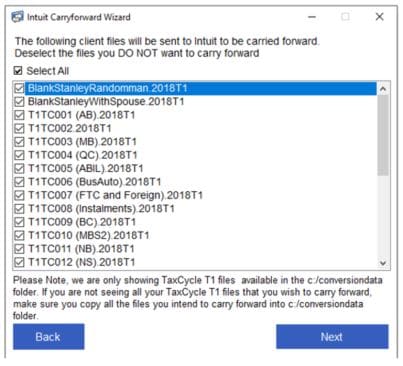
- Select all files to undergo conversion prior to carry forward.
Note: only files in the C:/conversiondata folder display for selection. If you don't see a file that should be converted, ensure it's been copied to the folder.
- Select Next. The selected files begin conversion.
Most jobs will complete within minutes, so you can minimize this window and work in ProFile as the upload/ conversion takes place.
Intuit emails you a notice that conversion has begun.
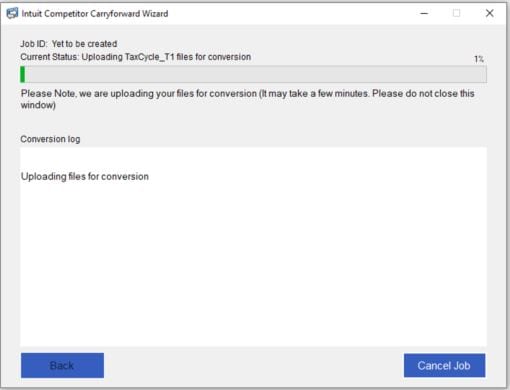
You can select Cancel Job at any time to cancel the conversion.
Conversion may take several minutes depending on file size and the number of files being converted. A progress bar displays conversion progress:
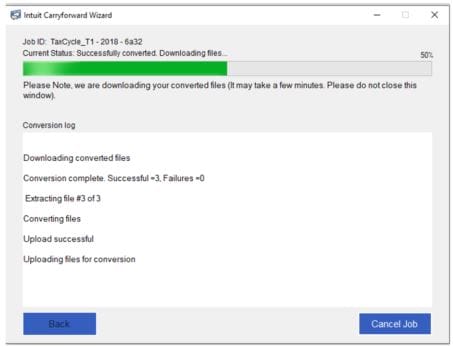
A conversion complete message displays when the files are successfully converted:
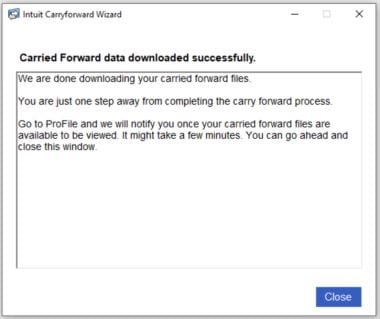
ProFile converts the TaxCycle files to a ProFile-compatible format. Intuit emails a notice that conversion is complete:

- Select Close. The conversion summary window displays.
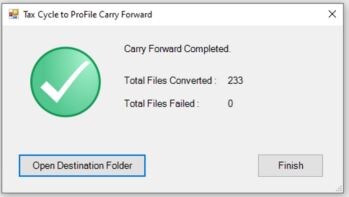
- Select Open DestinationFolder to review the converted files in the TaxCycle folder. The location will be C:\Users\[local user]\Documents\My ProFile Data\TaxCycle\[module]:
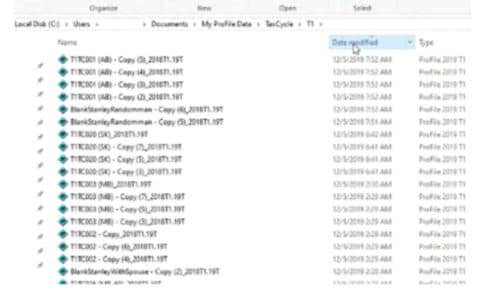
- Select Finish.
Note: You can’t change the save locations for the input (conversion data folder) or the output (My ProFile Data\TaxCycle) folders right now. If you want to store files on a network or another folder, move them to your preferred spot after the conversion.
You may now open the client files in ProFile for further work or electronic filing.
In the event that a file or files are not converted and copied to the data folder, users can use the Download converted client data function to copy them again without completing the full conversion process.
Note: It's not necessary to use the Download converted client data function if a conversion is completed successfully.
- Open ProFile.
- Select the File menu in ProFile.
- Select the Download Converted Client Data… option under the TaxCycle Carry Forward… menu.
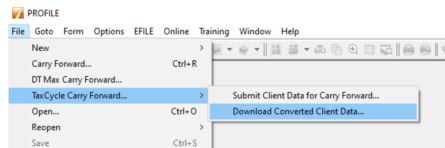
The Sign In window displays:
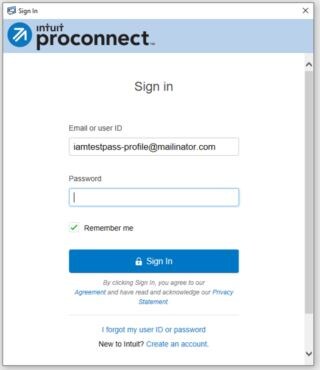
- Sign in to your ProFile account. The download window displays.
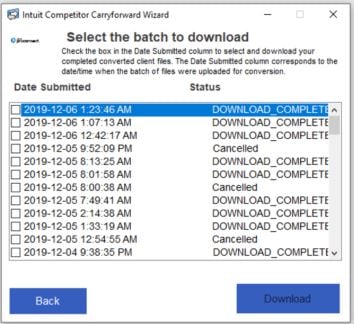
- Select the files to download.
Note: Only files in the DOWNLOAD_COMPLETE status can be downloaded.
- Select Download. The files begin their download.
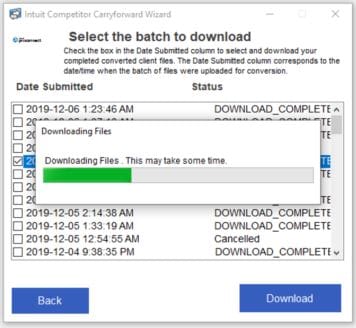
The completion window displays when downloading completes.
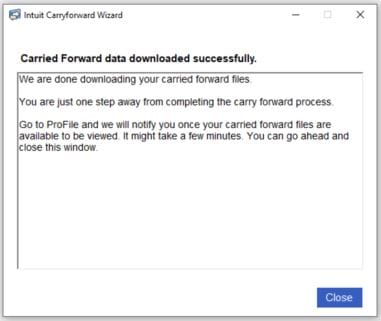
- Select Close. A summary of the downloads displays.
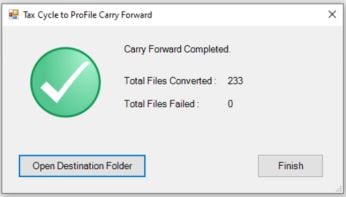
- Select Open Destination Folder to review the converted files in the My ProFile Data folder on your computer.

- Select Finish.
You may now open the client files in ProFile for further work or electronic filing.
Managing errors in conversion
It's possible that in the course of converting TaxCycle client files to ProFile that one or more files may fail to convert.
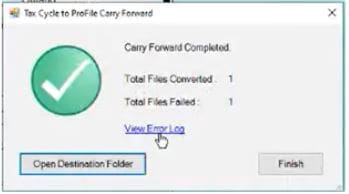
- Select the View Error Log link in the window. The error log displays.

- Review the error message in the log (for example, “The process can't access the file”).
- Address the issue and retry the client file conversion attempt. If the issue persists, review the full TaxCycle carry forward troubleshooting article for further assistance.
What modules are supported?
Currently, T1 and T2 client files in TaxCycle can be converted and carried forward into ProFile.
What years are supported for conversion?
T1 module supports files for 2018 and later years.
T2 module supports files for 2016 and later years.
Is there a limit to how many files can be converted?
There is no limit to how many files can be converted.
Who can convert TaxCycle client files to ProFile?
File conversion is available to current year customers only.
How long will it take to convert my client files to ProFile?
In most cases client files are migrated within an hour, depending on the number of client files uploaded. Users receive an email from ProFile indicating when the conversion is complete.
What data gets converted during the conversion process?
The conversion process doesn't create an identical or fully accurate prior year tax return for side-by-side comparison. ProFile brings over key details to next year’s return. Keep in mind, conversion isn’t a direct transfer that recreates last year’s tax return.
The converted files provide a starting point intended to be transferred to the next year's tax program and the data in the converted file should not be changed in the prior year tax program.
How is this different from other carry forwards?
TaxCycle carry forward works differently from other carry forwards. A technology is used that allows for faster field mappings and an improvement in comparison between TaxCycle and ProFile returns. The result is a faster and more-accurate carry forward experience.
How long are my client files saved on Intuit's network?
Client data is used for conversion purposes only. After the data is converted, a copy is maintained for conversion backup purposes and is destroyed after a 30-day period.
Ensure you download your files within 30 days of conversion or you will need to repeat the conversion process. See the section Download converted client data below for the steps in the download process.
Why were some of my files not converted?
There can be several reasons why a TaxCycle client file did not convert:
- The file may not have been in the correct folder
- The file may have been locked or password-protected
- The file may be corrupted
- The file may be missing critical data
The affected files can be corrected and re-submitted.
What fields are supported and unsupported?
Supported fields include:
- All taxpayer information, including taxpayer, spouse, dependents, corporation, etc.
- All important carryover amounts that can be obtained
- 5-year, comparative summary, installments schedule
- Capital cost allowance
- Loss carryover amounts
Unsupported fields include:
- Quebec TP1 and CO17 tax information
- Amounts that are not relevant to next-year tax preparation
- Some provincial credit carry forward amounts